Create your first Pinned Events API integration. Learn how to create an API key, list channels, find a channelId, create an event, and use idempotency for safe retries.
What you will do
This guide creates a first Pinned Events API integration from an existing source system into a Pinned Events channel. You will authenticate with an API key, list channels, list supported public classifications, create an event, and use the Idempotency-Key header for duplicate-safe retries.
Prerequisites
- A Pinned Events account with account setup completed.
- Ownership of at least one channel where the API key owner can publish events.
- An API key with the channels:read and events:create scopes.
- A channelId from GET /api/public/v1/channels.
- A public classification slug from GET /api/public/v1/classifications.
- Approved event data from a CMS, CRM, spreadsheet, partner form, internal tool, or backend job.
Base URL
https://pinned.eventsPublic API endpoints use the /api/public/v1 namespace. The interactive reference and OpenAPI schema are linked from this portal.
Step 1: Create an API key
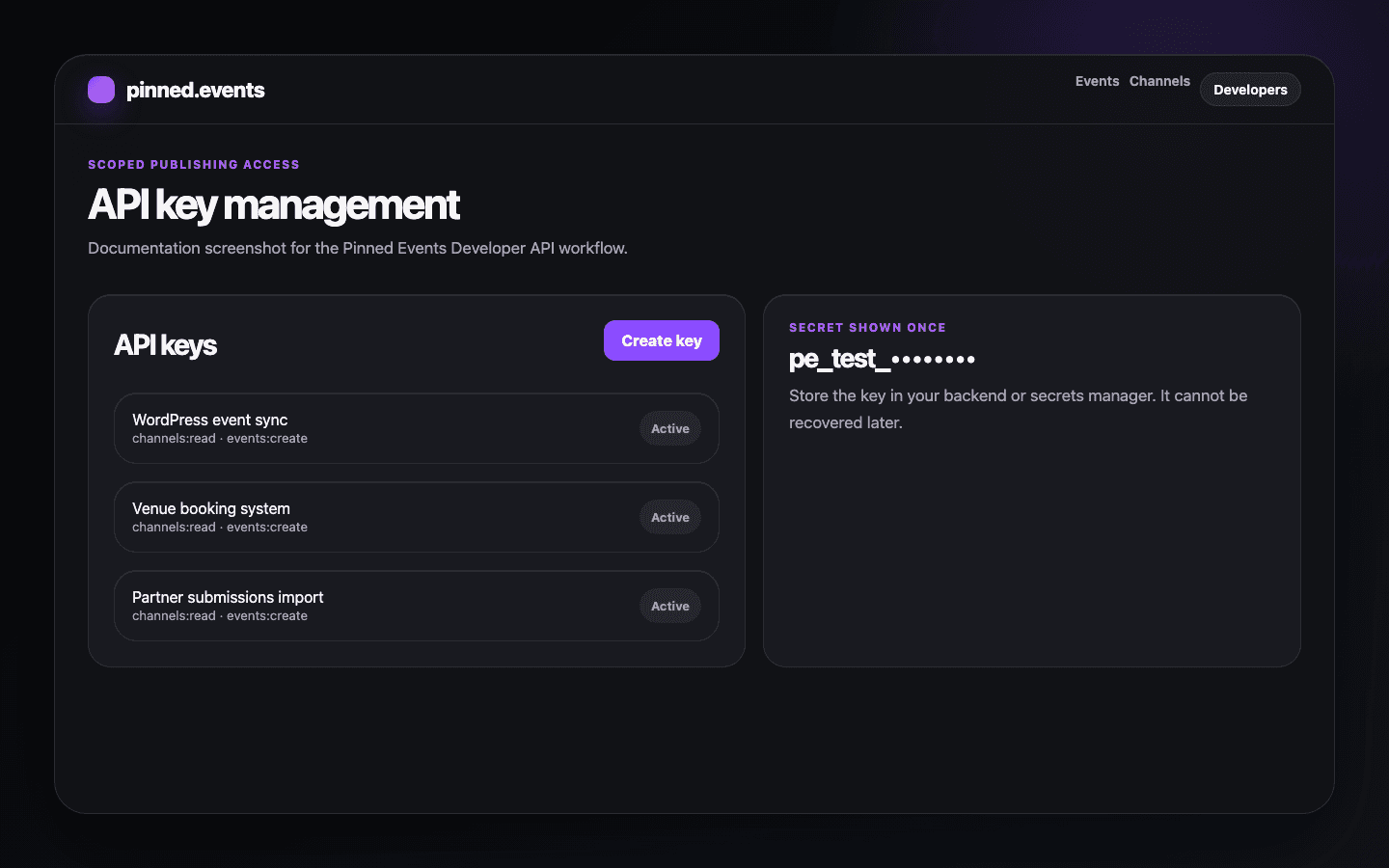
Go to the API key management page and create one key per integration when possible. New keys start with the quickstart scopes channels:read and events:create.
Step 2: List channels
curl https://pinned.events/api/public/v1/channels \
  -H "Authorization: Bearer YOUR_API_KEY"
{
"docs": [
{
"id": 42,
"name": "Valencia Live Music",
"slug": "valencia-live-music"
}
],
"page": 1,
"limit": 20,
"totalDocs": 1,
"totalPages": 1,
"hasNextPage": false,
"hasPrevPage": false
}Choose the channelId where the event should appear. Channel access is checked again at request time, so a key cannot publish into channels the owner no longer owns or can access.
Step 3: List public classifications
curl https://pinned.events/api/public/v1/classifications{
"version": "2026-05-23",
"docs": [
{
"slug": "music",
"name": "Music",
"description": "Concerts, DJ sets, live performances, and music events."
}
]
}Use public classification slugs such as music or workshop in the classifications field. The Public API does not require opaque internal taxonomy IDs.
Step 4: Create a minimal event
curl https://pinned.events/api/public/v1/events \
  -H "Authorization: Bearer YOUR_API_KEY" \
  -H "Content-Type: application/json" \
  -H "Idempotency-Key: wordpress-post-123-create" \
  -d '{
    "channelId": 42,
    "title": "Rooftop Jazz Night",
    "startAt": "2026-06-12T20:00:00-04:00",
    "timezone": "America/New_York",
    "classifications": ["music"],
    "approxLocation": {
      "city": {
        "placeId": "place-new-york",
        "name": "New York",
        "countryCode": "US"
      }
    }
  }'
{
"doc": {
"id": 1,
"title": "Rooftop Jazz Night"
}
}The minimal create request needs channelId, title, startAt, timezone, classifications, and an approximate city. Add venue details, descriptions, images, ticket offers, and publishing options as the integration grows.
Step 5: Retry safely with Idempotency-Key
Use a stable Idempotency-Key for the same source event and action. If a webhook or import job retries the same create request, reuse the same key instead of generating a new random value.
wordpress-post-123-create
hubspot-event-456-publish
airtable-recABC123-create
nightly-import-2026-06-12-row-42
Step 6: Check the created event
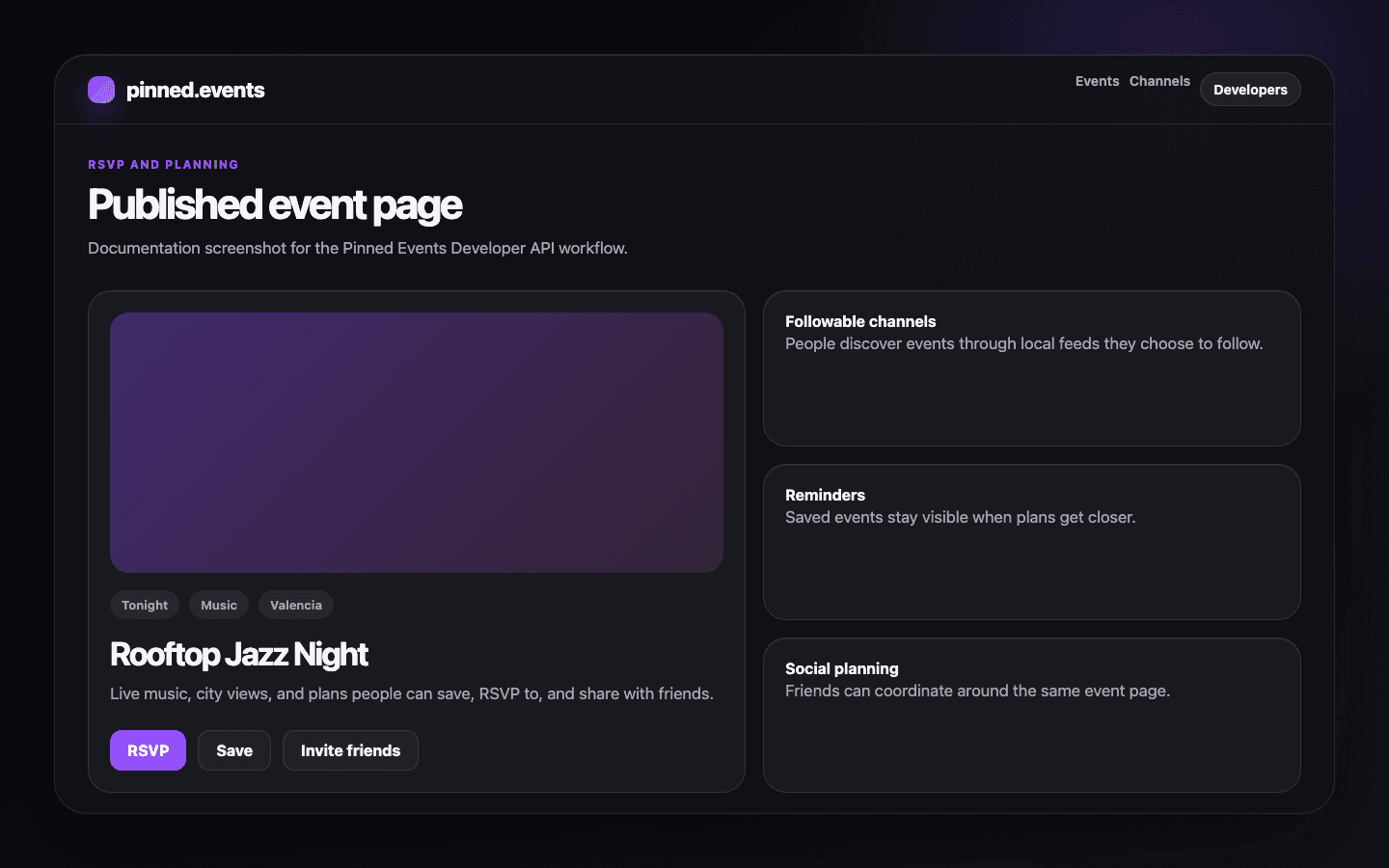
After the request succeeds, open the related event or channel in Pinned Events and confirm the title, date, timezone, location, ticket link, publishing status, and channel placement. If your workflow creates drafts, review the event before publishing it.
Next steps
- Read Authentication before storing API keys in production.
- Read Create Events for optional fields, images, ticket links, and validation errors.
- Read Idempotency before wiring webhooks, scheduled imports, or retry queues.
- Use the interactive API reference when you need exact request and response schemas.